
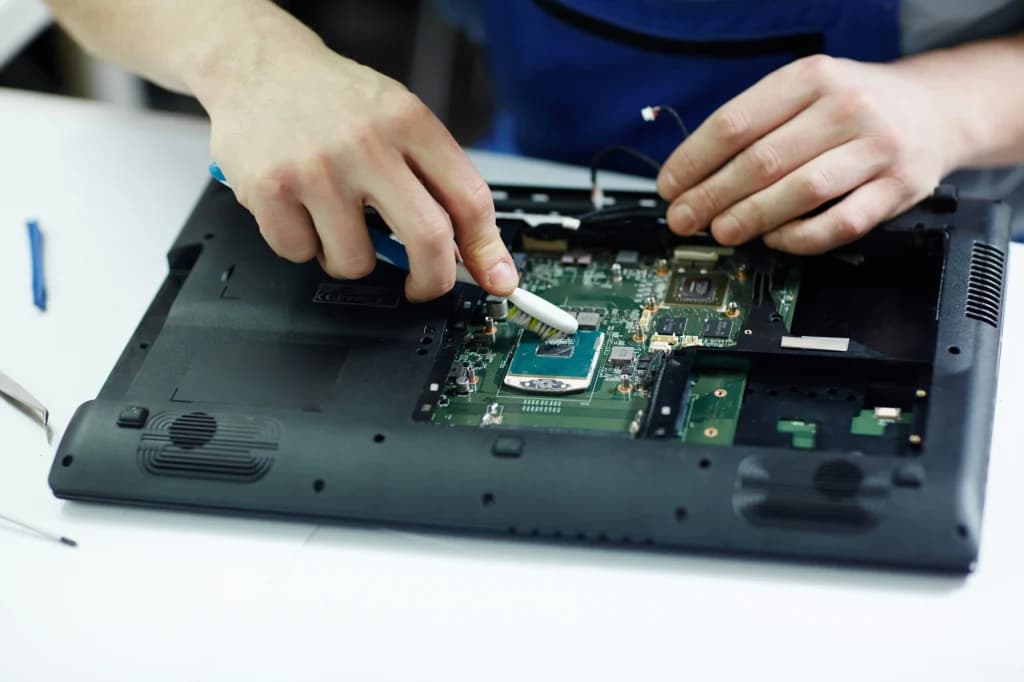
Record the task when the fan becomes noticeable
Fan noise during an update or demanding workload is different from a repeated shutdown during light use. Note the laptop model, the task, the surface it sits on and the exact warning or shutdown behaviour. 'Feels hot' is a starting description, not a component diagnosis.
Dell's thermal guidance distinguishes ordinary fan activity under workload from conditions that need investigation, and highlights restricted airflow. Use that distinction to frame your questions. Do not disable thermal protections or try to keep a laptop running through repeated overheating events.
Check the environment before opening the case
Place the laptop as its manufacturer recommends, with the ventilation openings unobstructed. A soft surface or objects against an exhaust can affect the test. Observe the same ordinary workload again only if there is no damage or warning that makes continued use inappropriate.
Record whether the behaviour changes with the environment. This does not replace an internal inspection, but it can keep the service history accurate. Do not insert tools through the vents, spray liquids inside the laptop or remove covers without the correct manual and preparation.
Separate workload evidence from cooling evidence
Look at what the computer was doing when the complaint occurred, using the operating system's normal activity tools where available. A busy process helps describe the workload; it does not prove the cooling system is healthy or that the process is malicious.
Conversely, a loud fan alone does not establish that thermal paste should be replaced. Internal cleaning, fan replacement and heatsink work are different interventions. Each requires a reason, the right parts or materials and a model-specific reassembly procedure. Avoid replacing several things just to see whether the noise changes.
Agree on a post-service comparison
A sensible verification repeats the reported task and records whether the original warning, instability or noise remains. Use manufacturer diagnostics where appropriate and retain their results. Do not invent one universal temperature limit for every processor, laptop design and operating condition.
For students, write a short case note with the original environment, observed workload, intervention and result. If the complaint was intermittent or the exact workload was unavailable, state that limit. Honest verification is more valuable than an unexplained 'stress test passed' statement.
Sources and further reading
Manufacturer and technical references for the checks discussed in this guide. Follow the instructions for your exact device and equipment.
Repair procedures involve heat, electricity, fragile parts and customer data. Practise under qualified supervision and work only on devices you are authorized to service.